Adding and Editing Metadata in Experiments
Metadata allows you to attach custom information to your experiments, making it easier to organize, track, and report on them. This guide explains how to add and edit metadata on individual experiments.
Prerequisites
Before you can add metadata to an experiment, your workspace administrator needs to create metadata field definitions. These definitions determine what types of metadata can be added to experiments.
Accessing Experiment Metadata
To view or edit metadata for an experiment:
- Navigate to the experiment details page
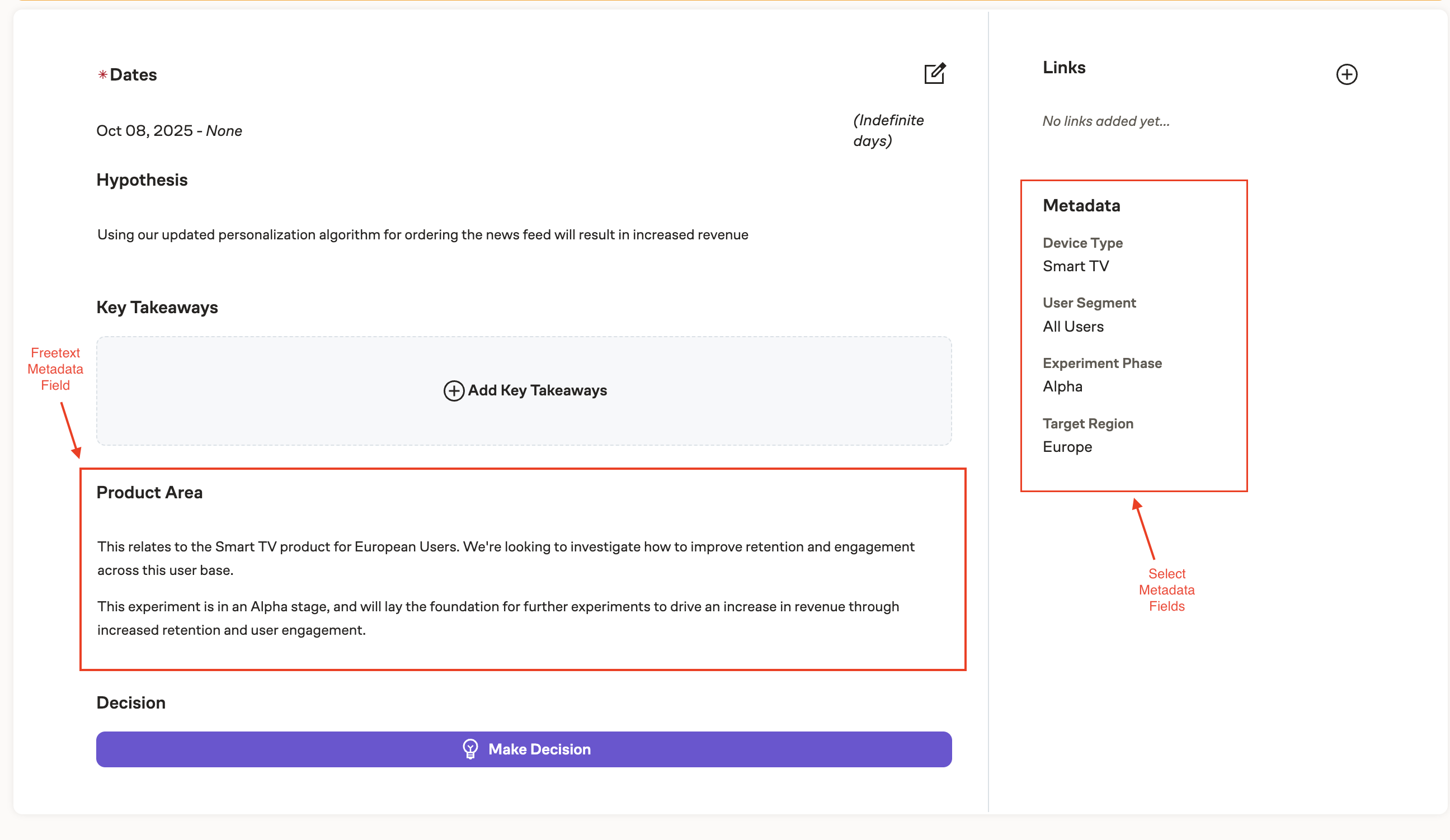
- Look for the Metadata section in the info sidebar on the right side of the page
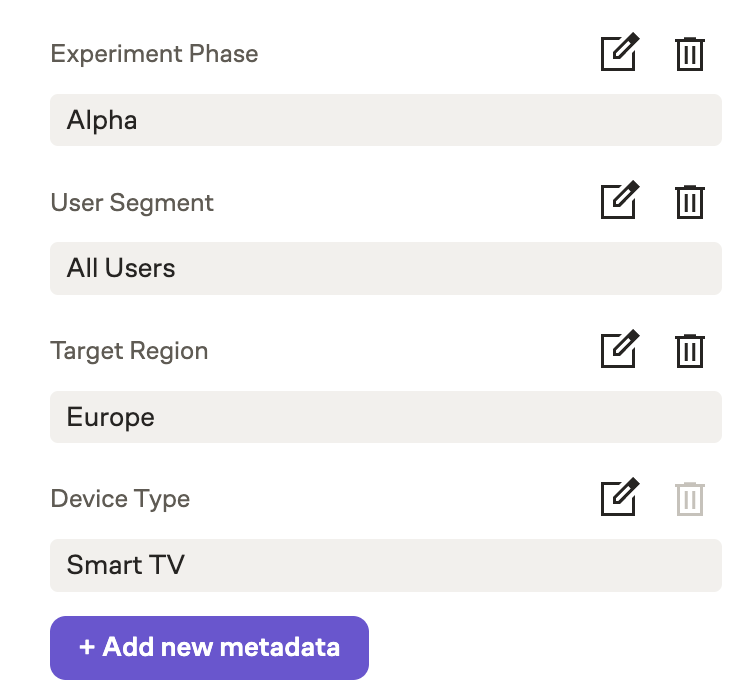
The metadata section displays all metadata currently attached to the experiment, organized by field.
Adding Metadata to an Experiment
To add new metadata to an experiment:
- In the metadata section, click Add new metadata
- Select the metadata field you want to add from the dropdown
- Enter or select the value based on the field type:
- Freetext fields: Type your text in the text area (up to 10,000 characters)
- Select fields (single-select): Select one option from the dropdown
- Select fields (multi-select): Select one or more options from the dropdown
- The metadata will be saved automatically
The dropdown only shows metadata fields that haven't already been added to this experiment. Once a field is added, it won't appear in the dropdown again until it's removed.
Editing Existing Metadata
To edit metadata that's already attached to an experiment:
- Find the metadata field you want to edit in the metadata section
- Click on the value to start editing
- Update the value:
- Freetext fields: Modify the text
- Select fields: Select a different option or additional options (for multi-select)
- Click outside the field or press Enter to save your changes
Changes are saved automatically when you finish editing.
Removing Metadata from an Experiment
To remove a metadata field from an experiment:
- Find the metadata field you want to remove
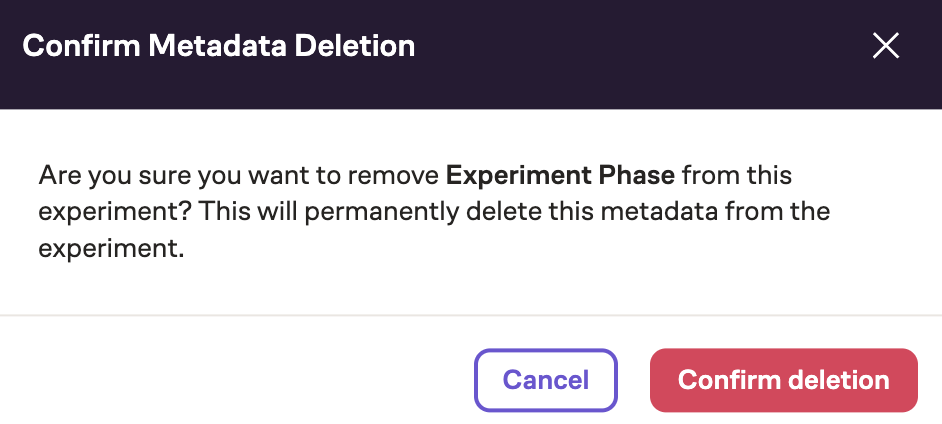
- Click the delete icon (trash can) next to the field
- Confirm the deletion if prompted
Removing metadata deletes the value for this experiment but does not delete the metadata field definition. You can add it back later if needed.
Understanding Required Fields
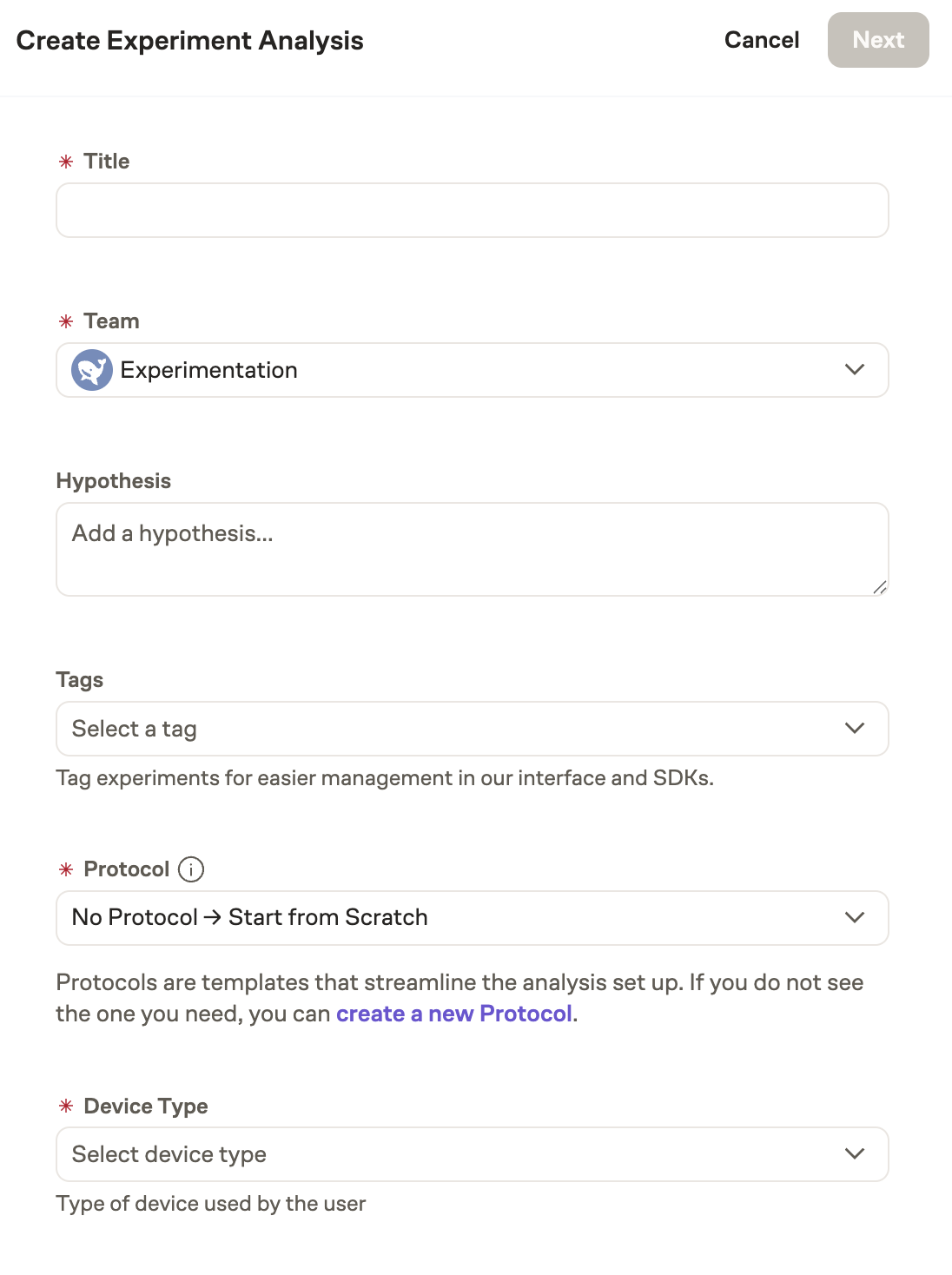
Some metadata fields may be marked as required by your workspace administrator. Required fields:
- Will show up in the experiment creation sidebar
- Must be filled out before you can create or save the experiment
- Cannot be removed once added
- Will show a validation error if left empty
If you see a validation error about a required field, make sure to provide a value before attempting to save.
Metadata Field Types
Freetext Fields
Freetext fields allow you to enter any text up to 10,000 characters. Common uses include:
- Links to documentation, tickets, or design files
- Detailed descriptions or notes
- Launch timelines or milestones
- Custom identifiers or reference codes
Single-Select Fields
Single-select fields provide a dropdown of predefined options where you can select one value. Common uses include:
- Team or department ownership
- Product area or category
- Priority level
- Status or stage
Multi-Select Fields
Multi-select fields let you select multiple values from a dropdown. Common uses include:
- Multiple teams involved
- Multiple product areas affected
- Tags or labels
- Related features or capabilities
Viewing Metadata in Experiment Lists
If a metadata field has been configured with Show in Overview enabled, it will appear on the experiment overview page.
Metadata and Experiment Lifecycle
Metadata is preserved throughout the experiment lifecycle:
- During planning: Add metadata when setting up the experiment
- While running: Update metadata as the experiment progresses
- After completion: Metadata remains attached for historical reference and reporting
- When archived: Metadata is retained with archived experiments
Metadata Transfer from Feature Flags
If an experiment was created from a feature flag that had metadata attached, that metadata is automatically transferred to the experiment.
Transferred metadata:
- Retains the same values from the feature flag
- Can be edited or removed like any other metadata
Best Practices
Add Metadata Early
Add important metadata when creating the experiment. This ensures consistent tracking from the start and makes it easier to organize and report on experiments.
Keep Freetext Concise
While freetext fields support up to 10,000 characters, shorter, more focused entries are often more useful. Consider using links to external documentation for detailed information.
Use Consistent Values
When using freetext fields that might be used for filtering or reporting (like team names), be consistent with formatting and naming to avoid duplicates.
Update Metadata as Experiments Evolve
If experiment details change (like ownership or priority), update the metadata accordingly to maintain accurate records.
Review Required Fields
If a field is required, make sure you understand its purpose and provide accurate information. Contact your workspace administrator if you have questions about required fields.